Your first agent session
Every action an agent takes on your machine, running a command, writing a file, or launching a server, happens through its tools. By default, terminal commands require explicit approval before they run. This guide covers how approvals work, how to set the right autonomy level for a session, and how to monitor context budget as work builds up.
Understanding tool call approvals
When the agent wants to run a terminal command, it shows an approval dialog with the exact command it intends to run. Review it. If it looks right, approve it. If something looks off, select Skip and send a message to correct the direction.
Scoped approvals
The approval dropdown gives fine-grained control over how broadly an approval applies. There are two dimensions:
Specificity - how broadly the approval applies:
- Command prefix - approve any command that starts with a specific prefix.
- Exact command - approve only the precise command line.
- All commands - approve all terminal commands.
Scope - how long the approval lasts:
- This session - applies for the rest of the current conversation.
- This workspace - persists for the project.
- Always - applies across future sessions.
For example, if Python uv commands are trusted in a project, use an approval that covers uv in the workspace. If tighter control is needed, allow only the exact command in the current session.
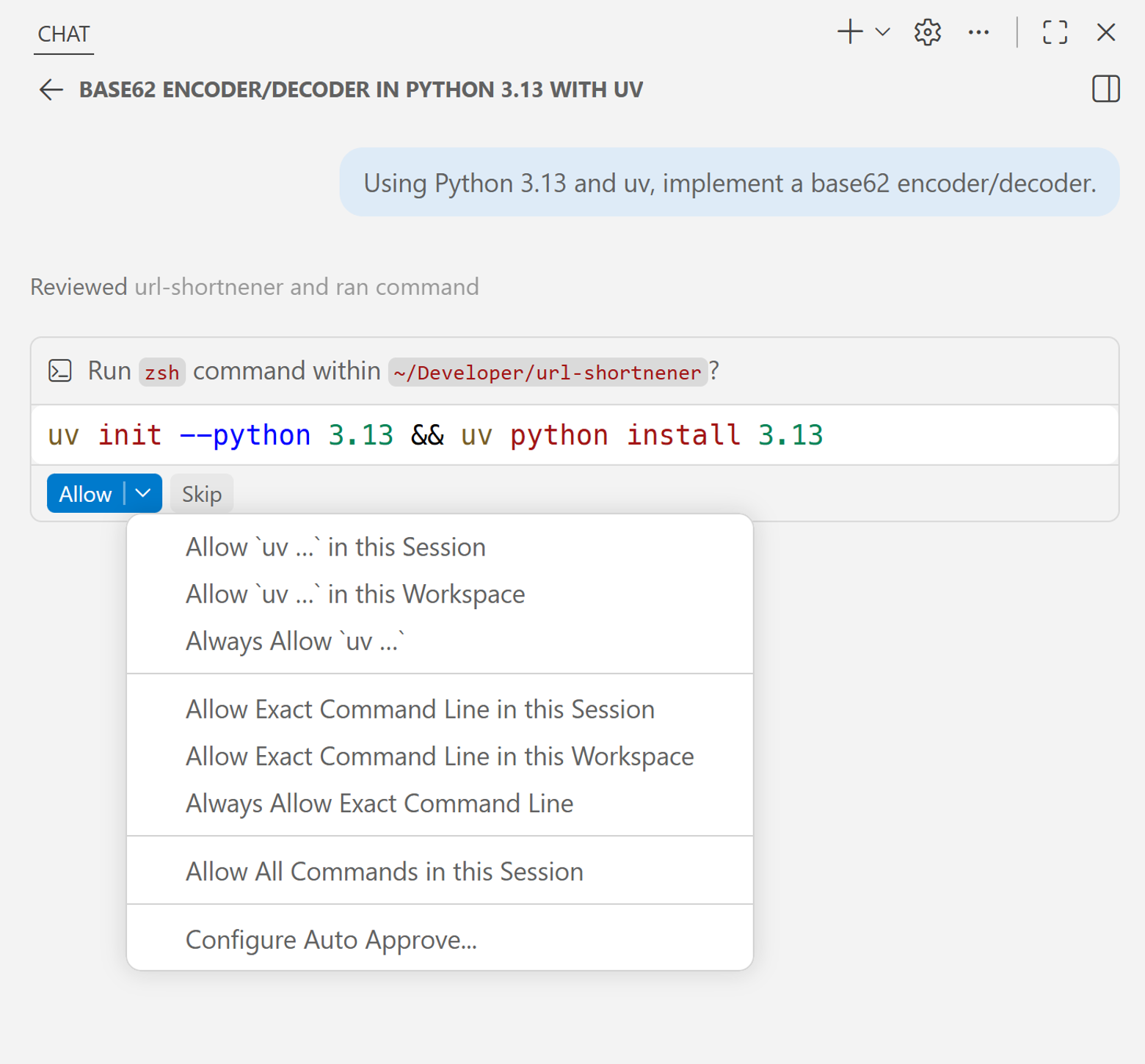
You can also manage these rules in VS Code settings through Configure Auto Approve.
Permission levels
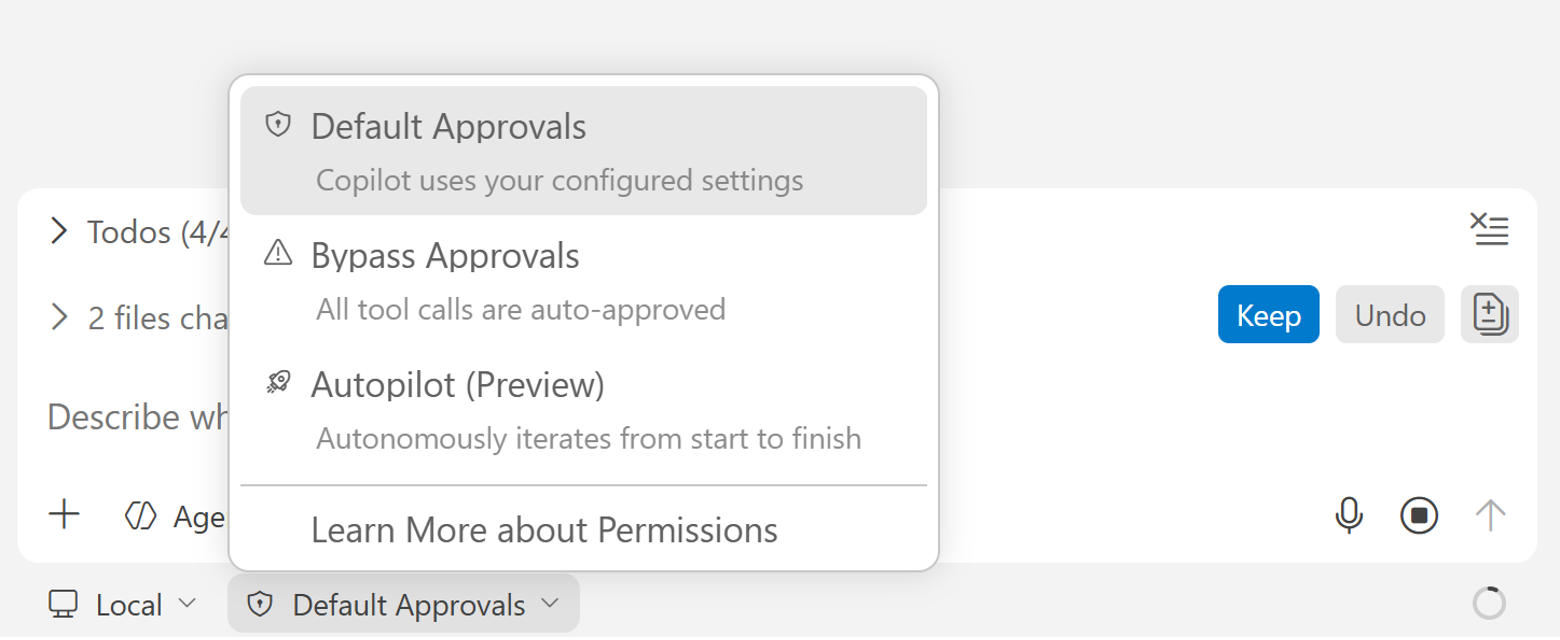
Beyond individual approvals, the permissions picker in the chat input area controls how much overall autonomy the agent has for the session.
Default approvals
The default mode. Copilot follows configured settings and shows confirmation dialogs where required. This is the right starting point when learning what the agent does or when working on something sensitive.
Bypass approvals
Auto-approves all tool calls and automatically retries when it hits errors. You're stepping back from step-by-step oversight and letting everything run uninterrupted.
With Bypass Approvals, the agent still stops and waits if it has a blocking question that requires a decision. You've removed the security prompts, but you're still in the loop for judgment calls.
Autopilot
Autopilot goes further than Bypass. It auto-approves tool calls, auto-retries on errors, and resolves blocking questions on its own until it decides the task is complete.
The first time you enable Bypass approvals or Autopilot, VS Code shows a warning. Both modes skip manual confirmations for actions that can modify files and run commands.
Tool calls
Every action the agent takes shows up in the chat panel as a tool call. A tool call is simply the agent using one of its available tools.
The agent decides which tools to use based on your prompt and gathered context. You can also reference tools explicitly in your prompt with #.
#fetch, pull in a specific web page.#codebase, search across your project.#file, attach a specific file.
Type # in the chat input to see the full list of context sources and tools available in the current session.
The context window
The model can only hold so much information in memory at one time. This limit is the context window, measured in tokens. When the context window fills up, the model starts losing track of earlier parts of the conversation.
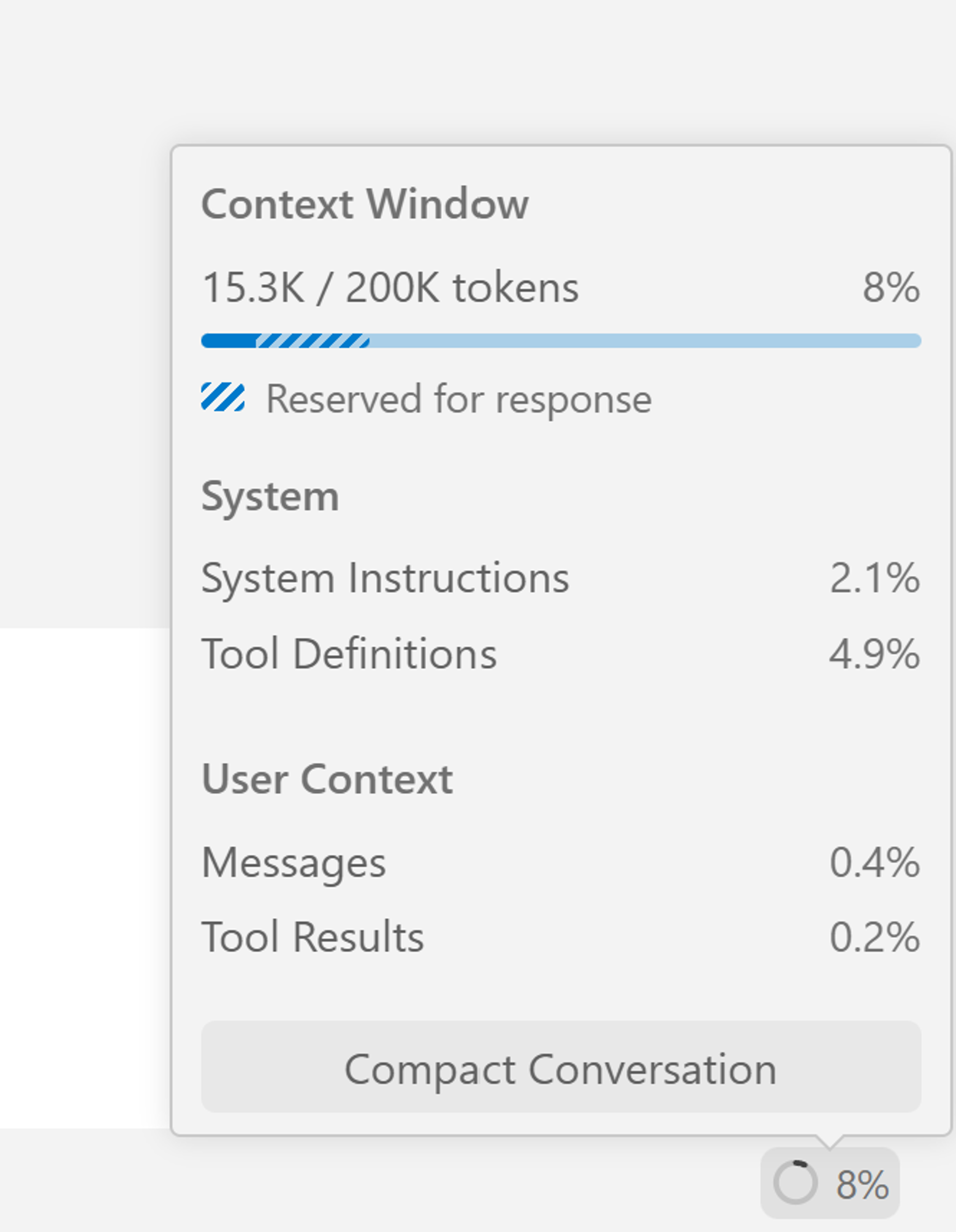
Select the token usage indicator in the chat panel to see a live breakdown of how the budget is being used.
What's in your context budget
The breakdown is split into two groups.
System (fixed overhead per request):
- System Instructions - built-in rules that shape how the agent behaves
- Tool Definitions - descriptions of all available tools
User context (grows as you work):
- Messages - conversation history: your prompts and the agent's responses
- Tool Results - output from tool calls, like terminal output and file reads
On short sessions, system overhead takes most of the budget. As sessions grow, tool results and messages start to dominate.
This is why being selective with tools and context matters. Everything you add contributes to the budget.
Managing a full context window
When the context window fills up, VS Code automatically compacts the conversation by summarizing earlier messages. This lets you keep working without stopping the session.
You can also compact manually.
- Select Compact Conversation in the context window popup.
- Type
/compactin the chat input. - Add instructions such as
/compact focus on the encoder implementation decisions.
If you want a full reset, start a new chat session.
Sub-agents also help here because they run isolated tasks in their own context windows. That topic is covered later in the series.
What's next
You now understand how to stay in control while the agent works, using scoped approvals, choosing the right autonomy level, and keeping an eye on context budget. In the next guide, you will review the changes the agent made, accept or undo them at any granularity, and use checkpoints and forks to explore different directions without losing work.