Create and manage agent customizations
Agent customizations adapt agents to your coding standards, workflows, and development systems. This article explains how to create, manage, evaluate, and troubleshoot customizations in Visual Studio Code. To compare the customization types and understand how they work together, see Agent customization concepts.
Agent Customizations editor
The Agent Customizations editor provides a central place to discover, create, and manage customizations. It organizes customization types into separate sections. Depending on the customization type and source, it provides a configuration form, an inline file editor with syntax highlighting and validation, or a read-only details view.
When you open the Customizations editor, the customizations are scoped to the selected agent harness. Select the harness from the dropdown in the chat input before you open the editor to ensure the customizations apply to the correct context.
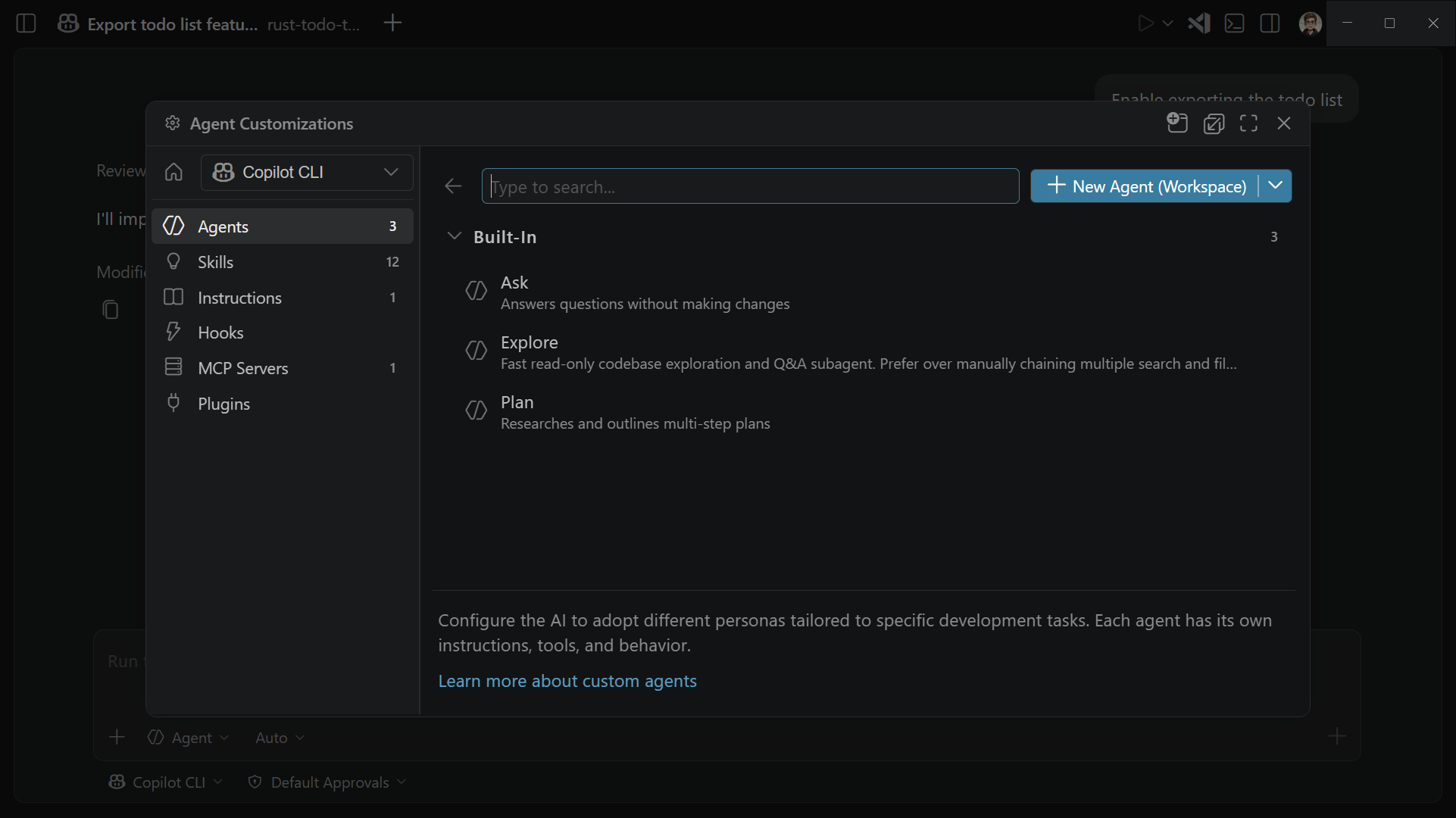
Follow these steps to open the Agent Customizations editor:
In the left sidebar, select a customization type in the Customizations panel.
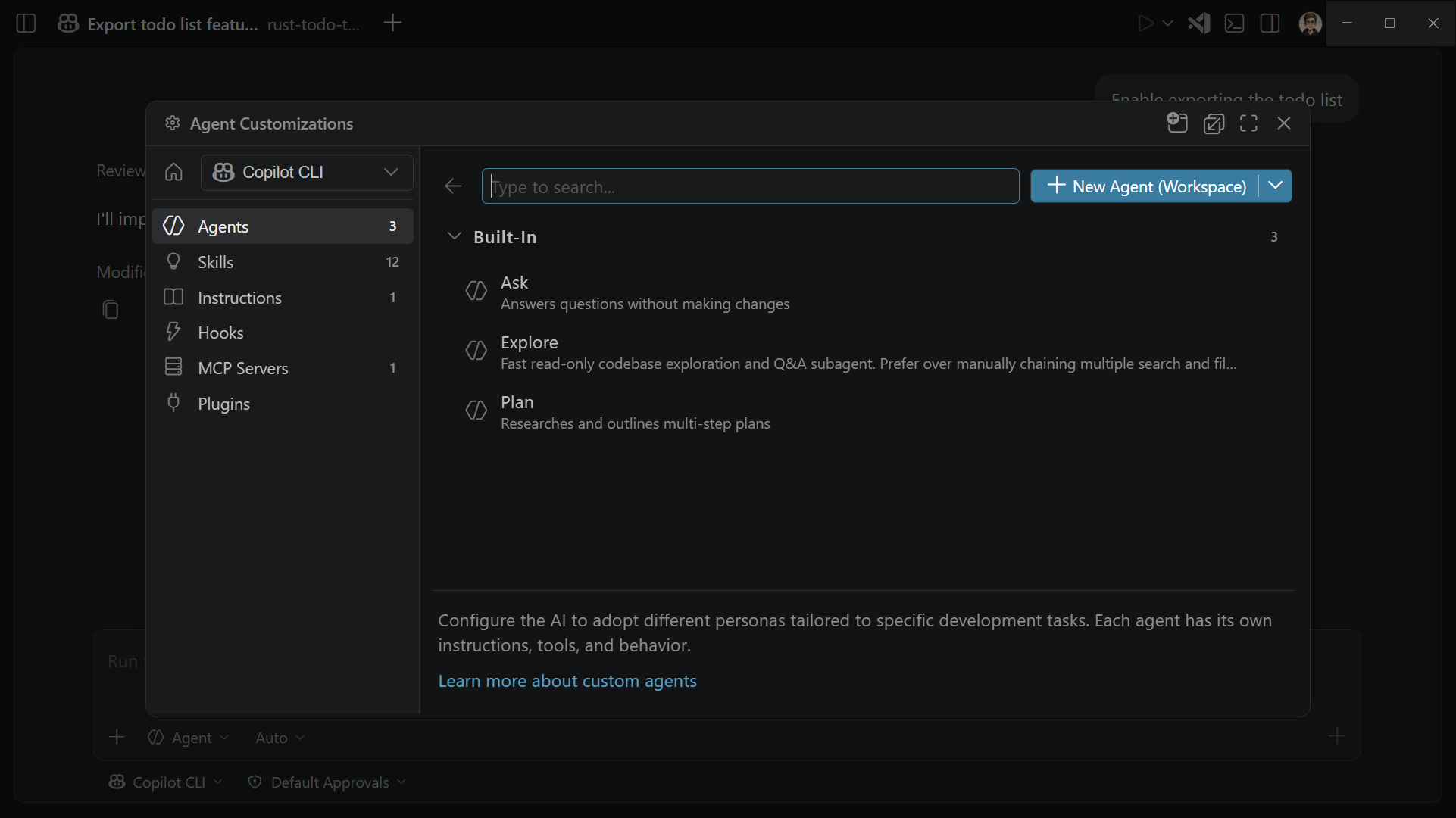
In the Chat view, select the Configure Chat (gear icon) or run Chat: Open Customizations from the Command Palette (⇧⌘P (Windows, Linux Ctrl+Shift+P)).
Discover marketplace customizations (Experimental)
The Customization Marketplace provides a unified Discover page for finding skills, MCP servers, plugins, and other agent customizations from configured sources. To use the marketplace, turn on the chat.customizations.marketplace.enabled setting.
The GitHub Feed source is available by default when the marketplace is enabled. Use the chat.customizations.marketplace.sources.publicFeed.enabled setting to show or hide this source.
To find and install a customization:
- Open the Agent Customizations editor and select Discover.
- Use the source menu to browse all sources or select a specific source, such as GitHub Feed.
- Search by name or use a type filter, such as
@type:skillor@type:mcp. - Select an item and review its publisher, source, installation details, and any setup requirements.
- Select Install and choose a destination when prompted.
Some items are available for discovery but don't support automatic installation. Follow the publisher's setup instructions when they are provided.
Marketplace items show a source or publisher image in Discover and, when available, on the installed item and its details page. Use this information together with the item details to verify the source before installation.
VS Code associates marketplace state with the exact installed target, not only its display name. A local customization and a Marketplace-installed customization with the same name remain separate:
- Installed indicates that the recorded target is available.
- Missing files indicates that files from a Marketplace-installed skill are no longer present. Select Repair to restore only the missing files. Repair preserves files that you edited or added.
- Deleting a Marketplace-installed customization removes its exact installation. It doesn't remove an unrelated local customization with the same name.
Choose a customization scope
Store a customization at the narrowest scope that matches how you want to use and share it:
- User: use the customization across your workspaces. User customizations are specific to you and are not committed to the project.
- Workspace: share the customization with project contributors through source control.
- Organization: centrally manage supported customization types and share them across repositories. Organization customizations are configured through GitHub rather than created in the Agent Customizations editor.
Scope determines where a customization is available and who can share it. Not every customization type supports every scope. The selected agent harness also determines which customization types and locations it supports. See the guide for each customization type for its supported locations.
Store user-level customizations in a folder that the selected harness supports on the machine where the agent runs. For example, Copilot reads customizations from ~/.copilot, and Anthropic Claude reads them from ~/.claude. These folders are separate from your VS Code profile user data and aren't shared automatically between machines. See instructions, custom agents, and prompt files for supported user-level locations.
Create a customization
You can create customization files with AI or create them manually. Review and test every customization before you rely on it for development tasks.
Create a customization with AI
- Open the Agent Customizations editor.
- In the Overview section, enter a prompt that describes what you want to create.
- Answer any questions the agent asks about missing details.
- Review the generated customization, correct any inaccurate information, and save the file.
For example, to create a code reviewer skill, you can enter the following prompt:
Create a workspace code reviewer skill for Python and JavaScript files. Check the code against the conventions in this repository, identify correctness and maintainability issues, and report findings with file locations and suggested fixes.
Create a customization manually
- Open the Agent Customizations editor and select a customization type.
- From the New dropdown, choose a user or workspace customization.
- Enter a name and choose a storage location when prompted.
- Edit the customization in the inline editor, which provides syntax highlighting and validation.
- Review and save the customization.
You can also run the Chat: New <customization-type> command from the Command Palette (⇧⌘P (Windows, Linux Ctrl+Shift+P)). The command creates the corresponding file in a supported location for that customization type.
To add an MCP server manually, select MCP Servers, select Add Server (+) in the User or Workspace group, and follow the guided flow. For detailed steps and configuration options, see Add and manage MCP servers.
For Agent Skills, MCP servers, and agent plugins, use Discover to browse marketplace sources and install an item. Manage the installation from the corresponding section.
See the guides for custom instructions, agent skills, prompt files, custom agents, MCP servers, hooks, and agent plugins for their file formats and configuration options.
Manage existing customizations
Use the Agent Customizations editor to find and update customizations for the selected harness:
- Open the Agent Customizations editor and select the customization type.
- Use the search box to find the customization.
- Select the customization to open its details.
- If the customization is editable, update its form or file and save your changes. For a read-only customization, use the available action to open the source file.
The available actions depend on the customization type and its source. Use the inline actions or context menu to access supported operations, such as revealing an editable file in your operating system or deleting it. Manage plugin-provided customizations from the Plugins section.
If the Agent Customizations editor shows Migrations, Copilot cannot use one or more customizations in their current location or format. Select Migrations to review the required work, and follow Migrate Copilot customizations in VS Code for detailed steps.
Verify a customization
Test a new or updated customization with a representative task. Check that the agent follows the expected instructions, workflow, tool configuration, or lifecycle action. For instructions and skills, expand the References section in the chat response to confirm that the expected customization was included.
If the result doesn't match your intent, make the customization more specific, resolve conflicting guidance, and repeat the task. For a complete project workflow, including how to review and share generated instructions, see Configure AI for your codebase.
Troubleshoot customization issues
If a customization isn't applied or causes unexpected behavior, check the following:
- The intended agent harness is selected.
- The customization is stored in a location that the harness supports.
- Any activation conditions match the current file or task.
- The customization file has no validation errors.
If the issue continues, open the Agent Debug Logs view to troubleshoot agent issues. Run Developer: Open Agent Debug Logs from the Command Palette (⇧⌘P (Windows, Linux Ctrl+Shift+P)), or in the Chat view select the ellipsis (...) menu and select Show Agent Debug Logs.
Use customizations in a monorepo
In monorepo setups, you might open a subfolder of a repository in VS Code rather than the repo root. By default, VS Code only discovers customization files within your open workspace folder(s). Enable the chat.useCustomizationsInParentRepositories setting to also discover customizations from the parent repository.
When this setting is enabled, VS Code walks up the folder hierarchy from each workspace folder until it finds a .git folder. If found, it collects customizations from all folders between the workspace folder and the repository root (inclusive). This applies to all customization types: always-on instructions (copilot-instructions.md, AGENTS.md, CLAUDE.md), file-based instructions, prompt files, custom agents, agent skills, and hooks.
For example, consider the following monorepo structure:
my-monorepo/              # repo root (has .git folder)
├── .github/
│   ├── copilot-instructions.md
│   ├── instructions/
│   │   └── style.instructions.md
│   ├── prompts/
│   │   └── review.prompt.md
│   └── agents/
│       └── reviewer.agent.md
├── packages/
│   └── frontend/          # opened as workspace folder
│       └── src/
If you open only packages/frontend/ in VS Code and enable the setting, VS Code discovers the customization files at the repo root, such as copilot-instructions.md, style.instructions.md, review.prompt.md, and reviewer.agent.md.
Conditions for parent repository discovery:
- The workspace folder does not contain a
.gitfolder (it is not itself a repository root). - A parent folder contains a
.gitfolder. - The parent repository folder is trusted. VS Code prompts you to trust the parent folder when the workspace is opened.
The chat.useCustomizationsInParentRepositories setting is disabled by default.
Evaluate and improve customization files (Preview)
As your collection of customization files grows, it can be hard to tell whether they actually guide the AI the way you intend. Vague wording, contradictory rules, or overly complex instructions can degrade results. The Chat Customizations Evaluations extension helps you catch these problems before you rely on a customization, by analyzing your files and suggesting concrete improvements.
The Chat Customizations Evaluations extension is published separately from VS Code. Install it from the Visual Studio Marketplace.
The extension works with skill files (SKILL.md), custom agent files (*.agent.md), instructions files (*.instructions.md), and prompt files (*.prompt.md).
Open a customization file and run the Chat Customizations Evaluations: Analyze command from the Command Palette (⇧⌘P (Windows, Linux Ctrl+Shift+P)). The extension uses GitHub Copilot to detect issues such as:
- Logical, behavioral, and format contradictions
- Ambiguous wording, with suggested rewrites
- Conflicting persona traits and tone drift
- Excessive cognitive load from deeply nested conditions
- Gaps in intent handling and missing error paths
- Conflicts between a file and other customization files it links to
Diagnostics appear in the Problems panel (⇧⌘M (Windows, Linux Ctrl+Shift+M)) with line and column locations. After the analysis completes, select Implement Suggestions to apply the suggested improvements.
You can also start an analysis from chat with the /analyze-prompt slash command, which summarizes the diagnostics for the active customization file directly in the Chat view.
For skill files, the extension integrates with the Waza evaluation framework to measure how well a skill performs against a set of test cases. Run Chat Customizations Evaluations: Download Waza Binary to install Waza, Chat Customizations Evaluations: Create Waza Eval Scaffold to generate evaluation files for the active skill, and Chat Customizations Evaluations: Run Waza Evaluation to run the suite. For step-by-step guidance, run Chat Customizations Evaluations: Open Analysis and Fix User Guide.