Explore and manage AI models in Foundry Toolkit
Foundry Toolkit helps you prepare a model for application development in Visual Studio Code. Start by deciding where inference should run, and then deploy a cloud model, download a supported local model, or connect to an existing endpoint.
This article explains how to find and set up a model, test it, and understand who owns the deployment, connection, or downloaded data.
Supported model sources
The publisher of a model is not necessarily its hosting provider. For example, a model published by one organization might be hosted in Microsoft Foundry, by the publisher, or in a local runtime. Choose a source based on where inference must run and which resource you want to manage.
For example, use a Foundry deployment for a shared cloud endpoint, connect a provider-hosted API that your application already uses, or select a local runtime to test a model on supported device hardware.
| Model source or runtime | Platform | Setup action | Your responsibility |
|---|---|---|---|
| Microsoft Foundry | Remote inference on supported extension platforms | Deploy a catalog model to a selected Foundry project and resource. | Manage the project, deployment, quota, access, and service configuration. |
| OpenAI, Anthropic, or Google | Provider-hosted inference on supported extension platforms | Connect a supported model with provider credentials. | Maintain the provider account, credentials, and any provider-side resources. |
| NVIDIA NIM | Provider-hosted inference on supported extension platforms, with supported local NIM models on Windows | Connect to a hosted endpoint or download a supported local model. | Maintain the endpoint or local runtime and its model data. |
| Custom or bring your own model (BYOM) | Any compatible endpoint reachable from the extension host, including localhost and private networks | Connect with a full Chat Completions URL, model details, and a credential. | Operate the endpoint and verify which capabilities it implements. |
| Ollama | Windows, macOS, and Linux | Connect to an installed Ollama runtime and add a model. | Maintain Ollama, its endpoint, and downloaded models. |
| Foundry Local SDK | Windows x64 and Arm64, and macOS Arm64 | Download and cache a supported model variant. | Maintain the local cache and meet the model's hardware requirements. |
| ONNX and ONNX Converted | Windows x64 and Arm64 | Download a supported model or add output from the model conversion tool. | Maintain the local model data and choose a model variant supported by your hardware. |
| Windows AI APIs, including Phi Silica | Supported Windows devices | Use an operating-system-backed model shown under Microsoft Foundry on Windows. | Meet the Windows and hardware requirements. Availability depends on the device. |
On Windows, Microsoft Foundry on Windows groups supported Foundry Local SDK models and entries labeled For Windows ML or For Windows AI APIs. On macOS, the Toolkit displays the supported SDK integration as Foundry Local. The broader Foundry Local SDK supports other environments, but this table describes the Foundry Toolkit integration.
Find a model
The model catalog combines models that you can deploy, download, or connect. Use its filters to narrow the catalog without treating catalog metadata as a guarantee that a model is available for your account, project, hardware, or endpoint.
Distinguish image input from image generation when you choose a model. A chat model can analyze images without producing image output. To generate images in Toolkit, select a supported Foundry image-generation model and prepare its deployment.
-
Select the Foundry Toolkit view in the Activity Bar.
-
Go to My Resources > Models.
-
Select the Catalog tab.
-
Search by model name or description, or use the catalog filters:
- Hosted by identifies the service or runtime that serves the model.
- Publisher identifies the organization that publishes the model.
- Capability filters identify advertised features, such as attachments or structured output. Confirm model and endpoint support when you test the model.
- Local model filters reflect available runtimes and model variants. CPU, GPU, or NPU eligibility depends on the model, device, and installed runtime.
-
Open a model card and review its source, available actions, prerequisites, and license information.
Searches and narrow filters can change which catalog sections are visible. Clear the search and filters to return to the broader catalog.
The following example filters the catalog to the Phi-4 model family and shows the availability and hosting-source filters.
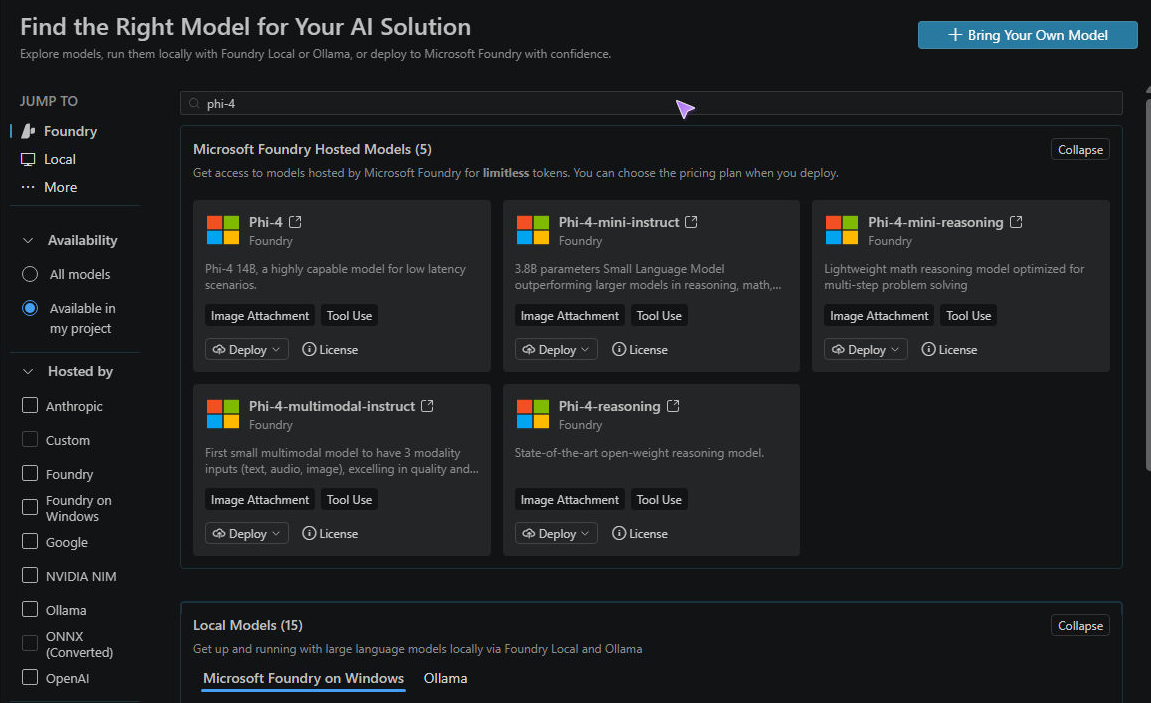
An administrator can also connect models for a configured Foundry project. These administrator-connected models are separate from catalog-created deployments and connections that you add yourself. They are not another Catalog provider or a deployment that you manage from this page. Their availability depends on the project and model-selection workflow. Use Agent Builder to select a model while building an agent, and contact your administrator if an expected connection is unavailable.
Deploy a model to Microsoft Foundry
Deploy a catalog model when you want Microsoft Foundry to host inference in your Foundry project. Before you start, make sure that:
- You are signed in and can access the target Foundry project and resource.
- The model is available in the selected region.
- The model supports the selected deployment type, and the required quota and capacity are available.
- You accept any publisher agreement that the deployment flow displays.
For a deployment that uses compatible settings for the selected project, open the model card's Deploy menu and select Deploy with default settings when that action is available. This action starts deployment with the Toolkit's defaults.
To review and customize the deployment settings:
- In My Resources > Models > Catalog, open the model that you want to deploy.
- Open Deploy and select Custom deploy.
- Confirm the read-only Project and Connected AI resource fields. Select the intended project in Foundry Toolkit before you open this form.
- Confirm the model and set the deployment name, deployment type, model version, version upgrade policy, tokens-per-minute quota, and content filter available for that model.
- Review the settings and resolve any inline validation errors. Review any publisher agreement that appears before you continue.
- Select Deploy to Microsoft Foundry to submit the deployment.
- After the resource list refreshes, go to My Resources > Models > Foundry to find the deployment.
The following example shows the custom deployment form before submission. Project and resource names are redacted.
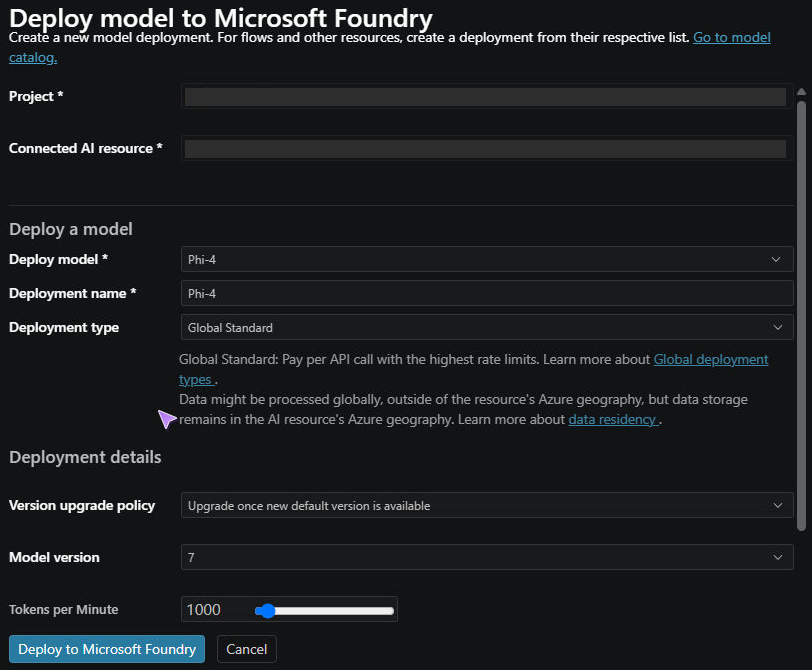
The result is a cloud inference deployment in the selected Foundry resource. It is not an agent resource. Open the deployment in the Playground to test inference, or select it in Agent Builder when you build an agent.
Region, quota, pricing, authentication, and safety configuration remain service-specific. Review the Foundry model deployment prerequisites and options, Foundry model quota and limits, and Foundry cost planning guidance before you create a production deployment. The Foundry deployment overview explains service-side deployment options and their content filtering and networking boundaries.
Add or connect a model
Use the setup flow that matches who hosts the model. A connection in Foundry Toolkit makes an existing endpoint available to development tools. It does not create or operate the provider's deployment.
Connect a provider-hosted model
- In My Resources > Models > Catalog, open a supported model from OpenAI, Anthropic, Google, or NVIDIA.
- Select the action to add or connect the model.
- Enter the provider credential and any endpoint or model details requested by the setup prompts.
- Complete the setup prompts, and go to My Resources > Models > Others to find the connected model.
Provider authentication, licensing, and supported capabilities vary. Review the provider's documentation before you send application data to the model.
Connect a custom model
Use BYOM for a local, private-network, or externally hosted endpoint that implements a compatible Chat Completions API.
- In the model catalog, select Bring Your Own Model.
- Enter the full Chat Completions URL that the extension host can reach.
- Enter the API model name expected by the endpoint, if prompted. Toolkit can infer the deployment name from some recognized endpoint URLs.
- Enter a display name for the connection in Foundry Toolkit.
- Enter the API key or authentication headers requested by the setup prompts. The prompt depends on the endpoint type.
- Complete the setup prompts and find the model under My Resources > Models > Others.
The connection information does not prove that the endpoint supports attachments, tools, structured output, or other optional capabilities. Test the selected model in the Playground and verify the endpoint implementation.
Add an Ollama model
Install and start Ollama before you add a model.
- From the catalog, select Add for an Ollama model. When you use the default Ollama endpoint, Foundry Toolkit can pull a catalog model that is not installed yet.
- To select an existing model, go to My Resources > Local Resources > Models, select the add action, and choose the Ollama flow. You can use the default endpoint or provide a custom Ollama endpoint. The model list shows models already available from that endpoint.
After the setup completes, find the model under My Resources > Local Resources > Models. Model capabilities depend on the Ollama model and the Toolkit integration. Review model input and feature support in the Playground.
Add a supported local model
- In the model catalog, open a local model that supports your operating system and processor architecture.
- Review the runtime, hardware, license, and storage requirements.
- Select the download or add action and choose a supported model variant.
- Wait for the download or registration to complete.
- Go to My Resources > Local Resources > Models to find the model.
For ONNX models that are not available directly from the catalog, use the model conversion tool. For Foundry Local requirements and SDK concepts, see the Foundry Local SDK reference.
Select a model for testing
After you deploy, connect, or download a model, select it in the tool that matches your next task:
- Use the chat playground to test prompts, inspect model-specific input capabilities, compare chat responses, and generate client code.
- Select a configured Foundry image-generation model to open Image Playground automatically. Follow Generate images with Image Playground to create images, try a supported reference image, and save the output.
- Use Agent Builder to select a model while you configure an agent. Model availability depends on the selected Foundry project and workflow.
Testing confirms the behavior of the selected model and endpoint. Catalog labels alone do not confirm that every advertised feature works with every deployment or connection.
Manage models
Use My Resources > Models for cloud deployments and provider connections. Use My Resources > Local Resources > Models for downloaded or registered local models. Available actions depend on the provider and resource type.
The Models page separates Foundry deployments, provider connections, and catalog discovery.

Common actions include loading a model in the Playground, copying its model name, refreshing its configuration, editing connection details, and viewing model information.
Review the model source before you select Delete. The action can delete a cloud deployment, remove only Toolkit connection configuration, or remove downloaded local data.
| Resource type | Effect of delete or remove |
|---|---|
| Microsoft Foundry deployment | Deletes the cloud inference deployment from the selected Foundry resource. |
| Provider-hosted, custom, or Ollama connection | Removes the Foundry Toolkit connection configuration. It does not delete the external provider deployment or Ollama model weights. |
| Foundry Local SDK, ONNX, or supported local NVIDIA NIM model | Removes the model's downloaded local cache data. The Toolkit unloads the model first when required. |
| Windows operating-system-backed model, such as Phi Silica | Availability is managed by Windows. Do not treat Toolkit connection management as a procedure for removing operating-system components. |
License and sign-in
Licenses, agreements, credentials, and permissions depend on the model source:
- Microsoft Foundry deployments require access to the project and resource. Use Microsoft Entra authentication for Foundry models when your application connects to the endpoint.
- Some catalog models display a publisher agreement during deployment or download. Review it before you continue.
- Provider-hosted and custom models require credentials accepted by their endpoint. You remain responsible for the provider account and data-handling requirements.
- Local models can have separate model licenses and hardware prerequisites even when no cloud sign-in is required.
For service concepts, model availability, and lifecycle information, see the Microsoft Foundry models overview. For endpoint and authentication choices, see Foundry model endpoints.