Using agents in Visual Studio Code
An agent is an AI assistant that works autonomously to complete a coding task. Give it a high-level goal, and it breaks the goal into steps, edits files across your project, runs commands, and self-corrects when something goes wrong. For example, instead of suggesting a fix for a failing test, an agent identifies the root cause across files, updates the code, reruns the tests, and commits the changes.
VS Code lets you work with agents the way that fits your workflow, with two surfaces you can pick from and move freely between:
- Editor window: stay in the main VS Code window when you're writing code and want AI to assist alongside the editor, debugger, and extensions.
- Agents window (Preview): switch to an agent-first surface when you want to think in prompts and orchestrate agent sessions across multiple projects.
Both surfaces share the same sessions, settings, and keybindings, so you can pick your path without committing to one or the other.
Agents can run on your machine, in a remote cloud environment, or through a third-party provider like Anthropic or OpenAI. You can also run agent sessions on a remote machine you own and monitor them from anywhere, whether from the Agents window, a browser, or your phone. Sessions keep running on the remote even when you disconnect, so you can close your laptop and check back later. Learn more about remote agent sessions.
You decide how much autonomy to give agents, from approving every tool call to letting them work fully on their own, and you can create custom agents to tailor their behavior to your project. You monitor and interact with all your sessions from a single sessions list, regardless of where they run.
Understand the agent loop, how agents plan and execute tasks, and how memory and subagents work.
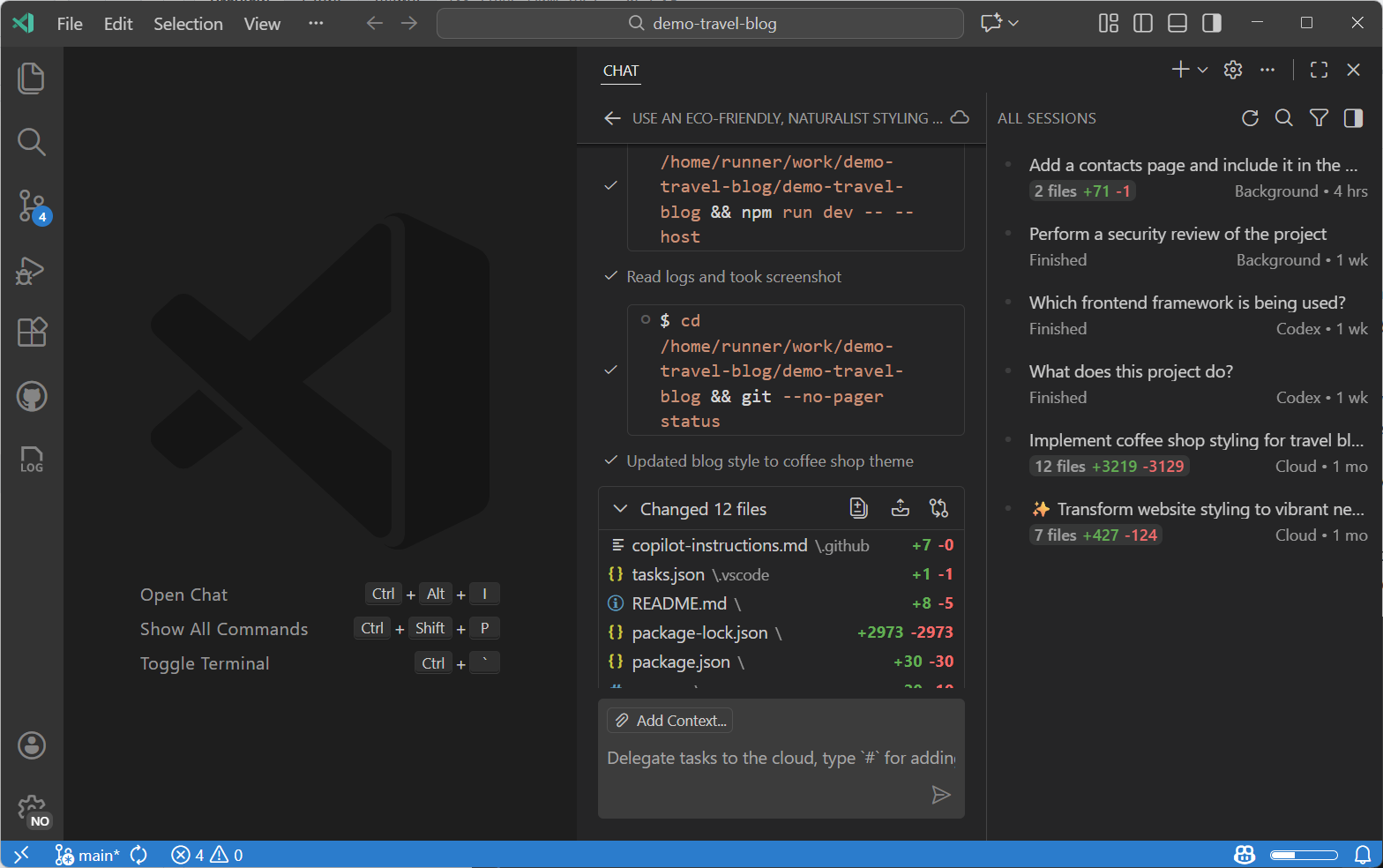
Enable agents in your VS Code settings ( chat.agent.enabled This setting is managed at the organization level. Contact your administrator to change it.). Your organization might also disable agents - contact your admin to enable this functionality.
Types of agents
Agents run in different environments depending on when you need results and how much oversight you want. The two key dimensions are where the agent runs (your machine or the cloud) and how you interact with it (interactively or autonomously in the background).
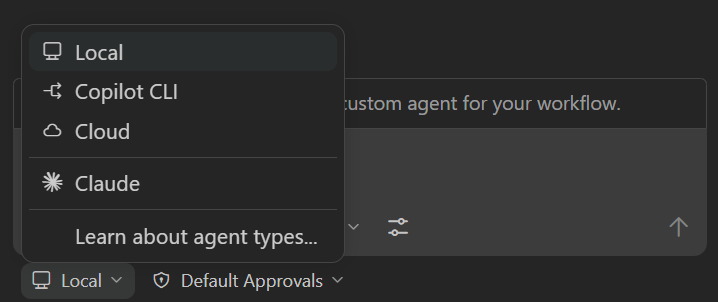
- Local: use the VS Code agent loop to run the agent interactively in the editor with full access to your workspace, tools, and models.
- Copilot CLI: use the Copilot CLI to run in the background on your machine, optionally using Git worktrees for isolation.
- Cloud: use GitHub Copilot to run remotely and integrate with GitHub pull requests for team collaboration.
- Third-party: use the third-party agent harness and SDK from Anthropic and OpenAI to run either locally on your machine or in the cloud.
Select the agent type from the agent target dropdown in the Chat view.
Which agent type should I use?
Use the following table to find the right agent type for your task:
| I want to... | Use |
|---|---|
| Brainstorm, explore, or iterate on an idea interactively | Local agent |
| Get answers about my codebase | Local agent (Ask) |
| Create a structured implementation plan | Local agent (Plan) |
| Fix an issue that needs editor context (test failures, linting errors, debug output) | Local agent |
| Build and test web apps with the integrated browser (Experimental) | Local agent. See the browser agent testing guide. |
| Use specific VS Code extension tools or MCP servers | Local agent |
| Implement a well-defined task while I keep working | Copilot CLI or Cloud agent |
| Explore multiple variants or proof of concepts | Copilot CLI or Cloud agent |
| Orchestrate agent sessions across multiple projects in a single, agent-first surface | Agents window |
| Create a PR for team review and collaboration | Cloud agent |
| Assign a GitHub issue to an agent | Cloud agent |
| Use a specific AI provider (Anthropic, OpenAI) | Third-party agent |
Where to work with agents
VS Code gives you two surfaces for working with agents, and you can pick the one that matches your workflow (or move freely between them):
-
Main VS Code window (editor-first): the full editor experience with debugging, notebooks, the extension ecosystem, and remote development. AI assists your coding through chat, inline suggestions, and agent sessions in the Chat view. Best when you're primarily writing and editing code in a single workspace.
-
Agents window (agent-first, Preview): a dedicated window optimized for orchestrating agents across multiple projects. Chat and the sessions list are the primary interface, with a Changes panel for reviewing edits and a Customizations panel for managing customizations in one place. Best when your primary workflow is thinking in prompts and running tasks across workspaces.
Both surfaces share agent sessions and VS Code configuration (like settings and keybindings), making transitions smooth. Open the Agents window with the Open in Agents button in the title bar.
Choose an agent
If the agent type is where the agent runs, the agent determines how to perform the task based on its role or persona. For example, an agent with a code reviewer persona focuses on reviewing code changes for quality and style and providing feedback, instead of making code changes. The agent's definition determines which tools it can use, how it executes tasks, and potential handoff points to other agents.
Select an agent from the agents dropdown in the Chat view. You can switch between agents at any time during a session.
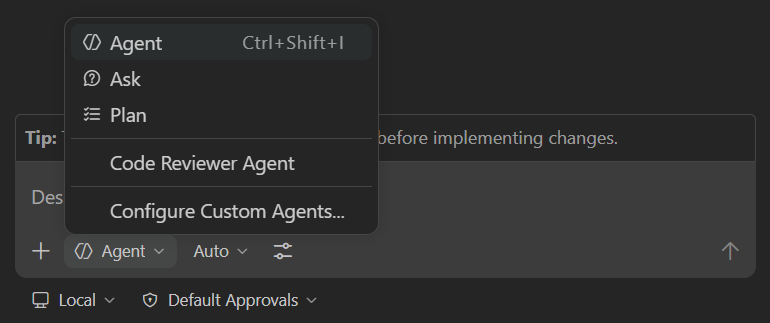
VS Code has three built-in agents:
- Agent: autonomously plans and implements changes across files, runs terminal commands, and invokes tools.
- Plan: creates a structured, step-by-step implementation plan before writing any code. Hands the plan off to an implementation agent when it looks right.
- Ask: answers questions about coding concepts, your codebase, or VS Code itself without making file changes.
For more specialized workflows, create your own custom agents that define a specific role, available tools, and a language model.
Choose a permission level
Agents perform tasks autonomously, but you can control how much autonomy they have for invoking tools and terminal commands. Giving agents more autonomy can increase efficiency but may reduce oversight. The permissions picker in the Chat view lets you choose a permission level for each session, from approving every tool call to letting the agent work fully on its own.
| Permission level | Description |
|---|---|
| Default Approvals | Uses the approvals as specified in VS Code settings. By default, only read-only and safe tools don't require explicit approval. |
| Bypass Approvals | Auto-approves all tool calls without confirmation dialogs. The agent might ask clarifying questions as it works. |
| Autopilot (Preview) | Auto-approves all tool calls, auto-responds to questions, and the agent continues working autonomously until the task is complete. |
To persist your preferred permission level across sessions, configure the chat.permissions.default setting.
Learn more about permission levels and Autopilot.
Hand off a session to another agent
You can hand off an existing task from one agent to another agent to take advantage of their unique strengths. For example, create a plan with a local agent, hand off to Copilot CLI for proof of concepts, and then continue with a cloud agent to submit a pull request for team review.
To hand off a local agent session, select a different agent type from the session type dropdown in the chat input box. VS Code creates a new session, carrying over the full conversation history and context. The original session is archived after handoff.
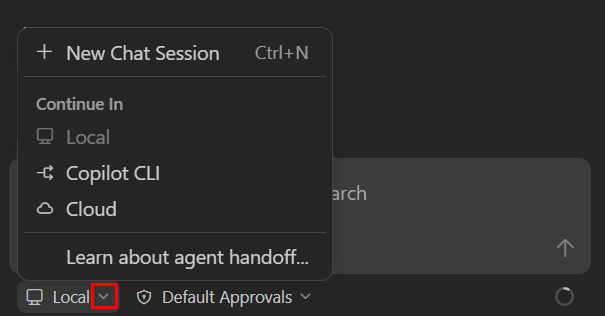
In a Copilot CLI session, delegate to a cloud agent by entering the /delegate command in the chat input box. You can provide additional instructions after the /delegate command.
Assign a coding task to an agent
If you install the GitHub Pull Requests extension, you can assign an agent to implement TODO comments in your code.
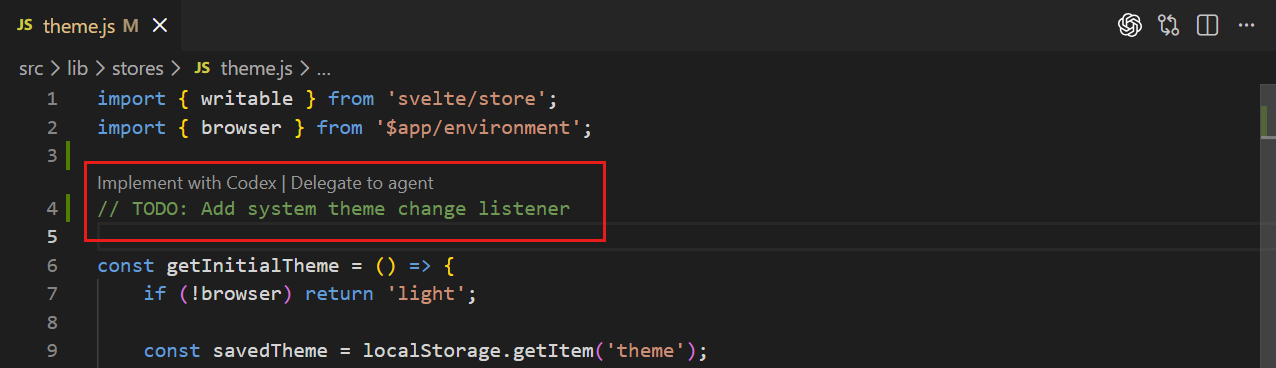
On GitHub.com, or by using the GitHub Pull Requests extension, you can assign GitHub issues to Copilot cloud agent by assigning the issue to copilot or by mentioning it in an issue comment or pull request to ask for a code review.
Related resources
-
Manage chat sessions: Create, switch between, and organize your agent sessions.
-
Agents tutorial: Hands-on tutorial for working with different agent types.
-
Tools: Extend agents with built-in, MCP, and extension tools.
-
Hooks: Execute custom commands at lifecycle events for automation and policy enforcement.
-
Custom agents: Create your own AI agents and extensions.